This page brings together my CounterString explanations, tools, demonstrations, algorithms, and programming tutorials. For installation and extension usage, see the CounterString Generator Chrome Extension.
What Are Counterstrings
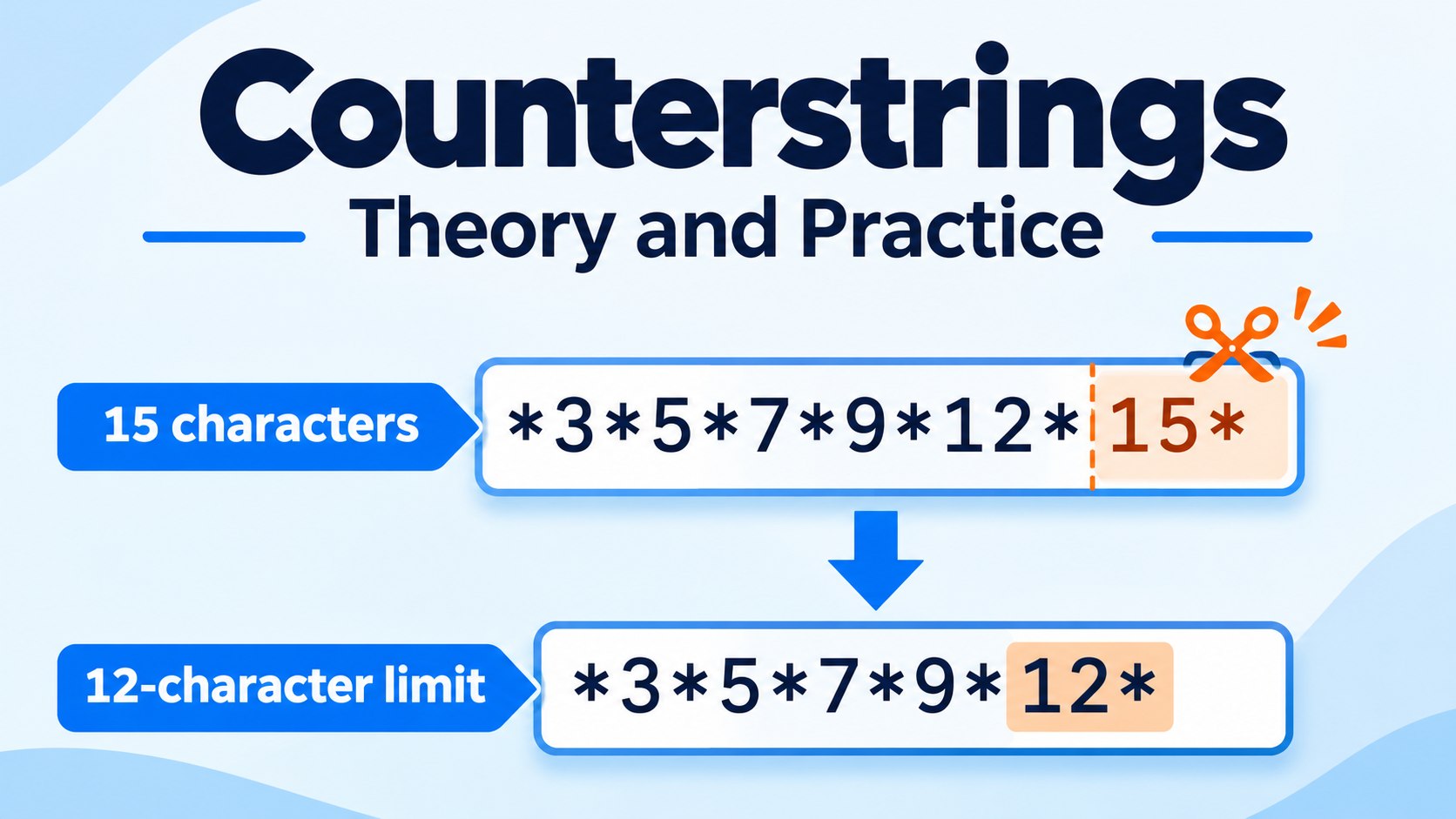
A Counterstring is a string like this *3*5*7*9*12*15* where the * represent the position in the string of the number immediately proceeding it. This is a 15 character CounterString.
These are useful because if you paste them into a field, and are truncated then it is easy to see what they were truncated to, it is as James Bach describes it, self documenting test data.
Read James Bach’s original explanation in Counterstrings: Self-Describing Test Data.
For example, if I paste the 15-character counterstring *3*5*7*9*12*15* into a field that only accepts 12 characters, I would see *3*5*7*9*12*. I would know immediately that the string value had been truncated to 12 characters.
Counterstring Tools Available
EvilTester.com CounterString Chrome Extension
My CounterString Chrome extension generates CounterStrings with configurable lengths and delimiters, as well as random data from regex, character ranges, and repeated text. It can insert the generated data into a field or type it character by character, and includes a Binary Chop Calculator to help explore field length limits.
See the extension page for features, demonstrations, and installation instructions. You can also find the tool:
Other CounterString Tools
A quick hunt around the web revealed a few more CounterString tools that I don’t think I had found all of these before. So these might be interesting for anyone thinking of creating their own implementation.
- PERL: https://www.satisfice.com/download/perlclip
- TYPESCRIPT: https://github.com/j19sch/counterstring/
- RUBY: https://github.com/jamesmartin/counterstring
- JAVA: https://github.com/eviltester/testtoolhub
- PYTHON: https://github.com/deefex/pyclip
- RUST: https://github.com/thomaschaplin/rust-counter-strings
Another Chrome Extension:
- https://github.com/Pawel-Albert/utilities-for-testing-extension
- and some associated Test Pages that I haven’t seen before
- https://pawel-albert.github.io/utilities-for-testing-extension/
Further Background And Implementations
If you want to learn more about CounterStrings then:
- Counterstring algorithms
- James Bach’s original writing and work on Counterstrings at satisfice.com
- and I wrote a Chrome Extension
- and I implemented it in my Test Tools Hub
Demo Of Counterstrings
This demonstration was published on 26 February 2019. The GitHub behaviour described below is from that demonstration.
CounterStrings are an underused technique. Primarily because there are not a lot of tools that implement it. In this blog post I explain how you can use them from within your browser, and as a bonus, using them to find a bug in Github.
Using CounterStrings
James Bach’s PerlClip is a simple executable that you run and it copies a CounterString into your clip board for copy and pasting into a field.
My Chrome Extension you right click on a field in a web page and it inserts the CounterString into the field and outputs it to the dev tools console for later copy and pasting.
CounterStrings are useful because if you paste it into a field and it is truncated you can work out the length. And if you are trying to binary chop to find a length of a validation string then CounterStrings can prove useful.
Github
When I was creating a demo video for CounterString extension I tried on Github.
- I created a 100 character CounterString,
- added it to Github Search field.
- Performed the search
- And Github said it would only search for 128 characters.
But I only entered 100 characters.
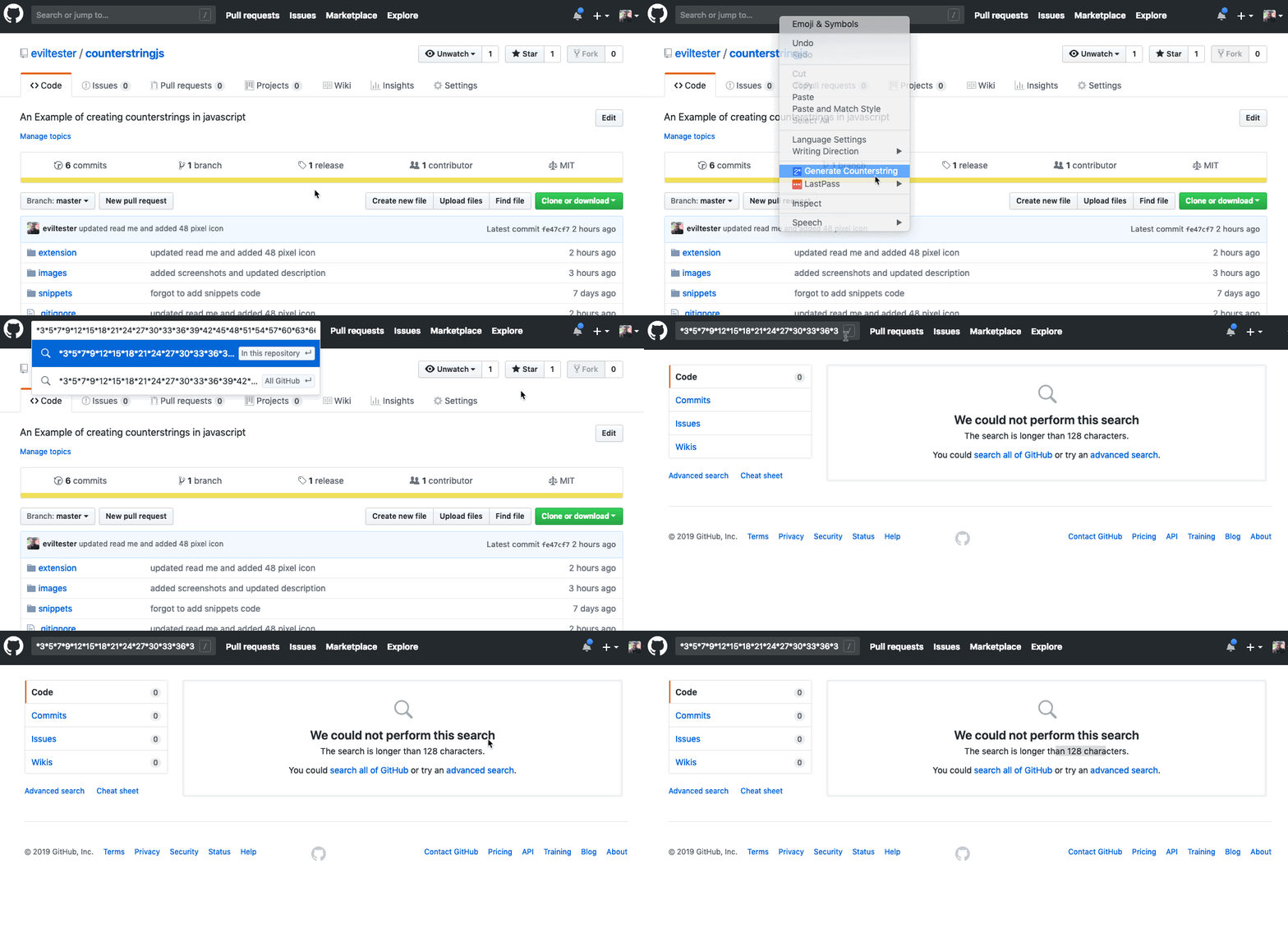
I then used the CounterString functionality to generate other CounterStrings which helped me discover that when Github says “128 characters” it actually means “95 characters”.
This is a really good example of the type of bugs that CounterStrings can help you find and how you use them to help you create different string lengths to help you identify the real validation length to support you when raising defects.
Video

Counterstring Algorithms
The following algorithm discussion was originally published on 8 May 2018.
TLDR; Reverse counterstrings are easier to generate. Creating same output forward is harder but might be useful for streaming or files.
I assume everyone has heard of and used CounterStrings. I came across them because James Bach wrote about them and created the perlclip tool to generate them.
*3*5*7*9*12*15*
Over the years I’ve written a few utilities for generating CounterStrings for a variety of platforms. I had to implement them in Excel once because we weren’t allowed to install any test tools. Fortunately, with Excel we had VBA and could write anything we wanted.
I’ll describe the steps I’ve taken to create a Predictive Forward CounterString Algorithm.
Reverse Counterstrings
The simplest, and most elegant way to create a CounterString seems to be the approach used in PerlClip.
- start at the number you want
- convert it into a “*number”
- then generate the next number, and add it to the String
- when finished
- reverse the string
Perl seems like a pretty efficient language, I don’t know if it reverses strings in the same memory buffer or not.
But back in the olden days I used to worry about memory usage a lot. Stems from growing up with 48K.
Very often with CounterStrings we generate large strings. And it is possible to blow out the memory allocated to your process.
I haven’t seen that happen with PerlClip.
I did see that happen with the Excel version I wrote
And I have run out of heap space with the Java version I wrote.
The most obvious way to reverse a String is to:
- create a new string
- copy all the chars from the old string into the new string from back to front
Which would, at a minimum, double the memory usage for the String.
Perhaps there is a way to generate CounterStrings forward instead of reversing?
Forward CounterStrings
A forward counterstring, without predicting the * boundaries would likely generate something like this for 15:
2*4*6*8*11*14*1
You can still pretty much tell that it is 15 chars in length, but if we want to use the notion of “Self Describing Test Data” that James Bach set out to achieve with CounterStrings then we didn’t do a particularly good job.
The problem with generating CounterStrings forward is that you need to predict certain things.
- should you start with
*or with2?
There are some choices that are pretty easy to predict. e.g.
Does the value I want to hit fit in the remaining spaces? If so then use it. i.e. after 7 we can predict the next string.
*3*5*7*9**3*5*7*10*
If we didn’t do this then 10 would have ended up as *3*5*7*9*1 assuming we managed to predict that we needed to start with *
But… it isn’t always that easy. Consider 15 and 16
*3*5*7*9*12*15**3*5*7*10*13*16*
The algorithm would have to predict that it needed to start with * and it needed to make a different decision in the middle of the string.
The Forward CounterString algorithm that I used in Excel, didn’t predict. The results were functional but not aesthetic.
Predictive Forward CounterStrings
I did find a way to predict, but I couldn’t find a way to do it elegantly.
That describes my 2018 implementation. I later developed a simpler schema-based approach for the CounterString Chrome extension, explained below.
After staring at far too many counterstrings I thought:
- I know what the final number is
- I need to figure out the last number that has the same number of chars
- and then just keep chunking back
e.g. with the 15 example above
*3*5*7*9*12*15*
- I know I want to end in 15.
- If I can calculate the last three char number i.e. 12
- Then the rest is easy
And with 16
*3*5*7*10*13*16*
- I know I want to end in 16.
- If I can calculate the last three char number i.e. 10
- Then the rest is easy
All I really have to predict are the boundaries, then I can fill in the blanks.
And after trial and error, I wrote code to do just that:
    private int calculateLowestXDigitNumberForThisRange(int maxNumberWithXDigits, String spacer) {

        int displayLengthInStringWithLimiterAppended = getLengthOfNumberInString(maxNumberWithXDigits, spacer);

        //*3*5*7*10*13*16*19*22*25*28*31*34*37*40*43*46*49*52*55*58*61*64*
        //67*70*73*76*79*82*85*88*91*94*97*101*105*109*113*117*121*125*
        // e.g. 125 has 3 chars
        // and display length with limiter would be 4 i.e. 125*
        int numberHasXChars = String.valueOf(maxNumberWithXDigits).length();

        // length - lowest x digit number
        // lowest 2 digit number is 10 to the power of (2-1) = 10
        // e.g. lowest 3 digit number is 10 to the power of (3-1) = 100
        int lowestXDigitNumber = (int) Math.pow(10, (numberHasXChars - 1));

        // what is the gap between our highest range number and the lowest in the range?
        // e.g. 125 - 100 = 25
        int differenceOfThisDigitValues = maxNumberWithXDigits - lowestXDigitNumber;

        // how many X digit numbers are in this range? (integer division)
        // e.g. 25/4 = 6  how many 4 character numbers fit in 25? == 6  125*
        int numberOfThisDigitValues = differenceOfThisDigitValues / displayLengthInStringWithLimiterAppended;

        // but we already displayed one
        numberOfThisDigitValues++;

        // 125 - (4*7) == 97
        int lowestXCharNumberIs = maxNumberWithXDigits
              - (displayLengthInStringWithLimiterAppended * numberOfThisDigitValues);
        if(lowestXCharNumberIs==0){
            // if it is 0 then it is really 2 because we can't have 0 as the lowest number
            lowestXCharNumberIs=2;
        }

        // length of 97 with spacer is 3
        int lengthOfLowestAsCounterString = getLengthOfNumberInString(lowestXCharNumberIs, spacer);

        // 3 != 4 so 97 is not lowest, lowest must be 97 + 4 = 101
        if (lengthOfLowestAsCounterString != displayLengthInStringWithLimiterAppended) {
            //it is not an X char number so next X char number is lowest + lengthOfNumberInString
            lowestXCharNumberIs = lowestXCharNumberIs + displayLengthInStringWithLimiterAppended;
        }

        return lowestXCharNumberIs;
    }
I have refactored to get that code, and removed some code for unnecessary edge cases.
I can probably tidy up the general objects that I’ve used:
But I’m OK with it as it stands.
And you can mess with it in JavaScript if that is more your thing
For the Mathematically Inclined
I have no doubt that there is a more elegant solution for those who are mathematically inclined. Or perhaps, your external review, of my approach and code, will reveal some shortcuts that can help.
I’m happy to learn of better ways to do this.
Why forward generation?
Generating a CounterString using a Predictive Forward method means that it is easier to generate counterstrings for:
- large files
- streaming systems
Potentially, I could save memory and make things faster by allocating a fixed char array and populating it in one pass.
- saving memory
- generating strings faster
And, because… the challenge.
If you have any links to other CounterString implementations then feel free to leave them as comments so we can all learn from others.

Schema-Based Forward Generation
The following implementation note is from the January 2026 extension update.
I wrote about CounterString Algorithms in an earlier blog post.
This extension uses both reverse generation and forward generation.
I initially learned about CounterStrings from James Bach. James has a tool called PerlClip which is a command line tool to generate data directly into the clipboard. This uses a reverse algorithm where the full string is generated and then reversed to paste into a field.
A forward algorithm allows ’typing’ the String character by character without generating the full string first.
While I don’t generate the full String first, I do precompute a Schema which I then follow to generate the String, so it takes about the same processing time, but uses less memory and allows streaming of the result.
I created a different algorithm this time, which is much simpler to understand, but probably takes longer to execute. I’ll need to update the algorithm page at some point, but you can see the algorithm implemented in the source code.
Schema-Based Forward Generation Algorithm
The CounterString Chrome extension uses a simpler approach: build a compact schema of position ranges, then generate the counterstring forwards from that schema. The schema is calculated backwards, but the output is generated forwards without reversing the string.
The schema separates working out the positions from writing the characters. I still need to know the final length before I start, but I don’t need to build the whole counterstring to work out its structure.
Build the Schema Backwards
For a 15-character counterstring using * as the delimiter, the final segment is 15*. That segment takes three characters, so the preceding delimiter must be at position 12.
12* also takes three characters, so the preceding delimiter is at position 9. At that point the numbers have changed from two digits to one, so the segment length changes from three characters to two. I continue backwards through positions 9, 7, 5, 3, and 1.
Instead of storing all those segments, I record the start, end, and increment for each range. The increment is the number of digits in the position plus the delimiter length.
The resulting schema is:
[
    { startNumber: 1, endNumber: 9, increment: 2 },
    { startNumber: 12, endNumber: 15, increment: 3 }
]
As I discover each range working backwards, I add it to the front of the schema. This leaves the ranges in the order needed to generate the counterstring forwards.
Generate the Counterstring Forwards
I can then walk through the schema from the beginning:
| Start | End | Increment | Positions | Output |
|---|---|---|---|---|
| 1 | 9 | 2 | 1, 3, 5, 7, 9 | *3*5*7*9* |
| 12 | 15 | 3 | 12, 15 | 12*15* |
Position 1 is a special case: I emit just the delimiter. For the other positions I emit the position number followed by the delimiter.
Together, the two ranges produce *3*5*7*9*12*15*. There is no final string reversal.
The same schema can drive a function that returns a complete string, or a function that passes each segment to a callback. That makes the generation logic reusable for collecting a string, writing to a file, or streaming the segments to another consumer.
What Is Simpler About It?
The earlier implementation calculated the boundaries using arithmetic and adjustments for edge cases. This approach discovers the boundaries by stepping backwards and starting a new range whenever the number of digits changes. The forward generator then follows those ranges.
The schema stays small because it stores one entry per digit-length range, rather than an entry for every segment. Building it still visits the positions backwards, so a compact schema does not mean there is no preparation pass, or that it is necessarily faster than the earlier algorithm.
The incremental generator can emit segments without retaining the complete output. The extension’s current typing integration, however, collects those segments into an array before typing starts. The generator supports streaming; the typing integration in my chrome extension does not yet take full advantage of that.
The implementation is in:
- generateSchema.js — build the position ranges
- forwardCounterString.js — collect the output into a string
- incrementalForwardCounterString.js — emit the output segment by segment
- counterstring-init.js — use the schema in the extension’s typing mode
Write Your Own Counterstring Tooling
JavaScript Snippets (2019)
The following JavaScript tutorial was originally published on 19 February 2019.
I often talk about automating tactically and strategically. When we automate tactically we do what it takes to get the job done for us. When we automate strategically we build for the long term.
The same is true for programming tools. We can start small and tactical and scale strategically. In this example I create a Counterstring tool.
Counterstrings
I have written about Counterstrings before:
- Counterstring algorithms
- and I implemented it in my Test Tools Hub
And you can find James Bach’s original writing and work on Counterstrings at satisfice.com
Since I don’t have a tool for creating Counterstrings in the Web I set out to create one.
I thought this would be a good simple tutorial for JavaScript, tactical tooling and eventually strategic tooling (by converting it into a Chrome extension).
How to write it?
Chrome has “Snippets”
- right click, inspect
- in Sources select the “Snippets” tab
- create a
+ New Snippet
This is a built in JavaScript Editor within your browser.
To see it work type into the snippet:
console.log("hello");
Click the play icon, and your script should run and you’ll see "hello" written to the console.
To create a Counterstring tool start by creating a function:
function getCounterString(count){
    console.log("hello");
}
If you run this, nothing will happen.
But after running it, if you type into the console getCounterString(5) you should see "hello" written to the console.
We will make it output a counterstring.
Counterstring generation function
function getCounterString(count){

    var counterString = "";

    while(count>0){

        var appendThis = "*" + count.toString().split("").reverse().join("");

        if(appendThis.length>count){
            appendThis = appendThis.substring(0,count);
        }

        counterString = counterString + appendThis;

        count = count - appendThis.length;
    }

    return counterString.split("").reverse().join("");
}
If you run this, nothing will happen.
But after running it, if you type into the console getCounterString(5) you should see "*3*5*" written to the console.
How does it work?
Declare a function called getCounterString which takes one parameter called count. That is how we are able to specify the length of the counterstring we want when we call the function getCounterString(5)
function getCounterString(count){
Create a String variable which we will build the counterString in:
var counterString = "";
We need to loop around all the values in the counterstring e.g. 5, 3, and 1. So I will decrease the count as we process the values and I’ll use a while loop to do this e.g. while count is greater than 0, keep building the counterstring.
while(count>0){
Each time I process a count value I will create a string like "*5" or "*3" I will append this to the counterString. But I can’t just write "*13" because I’m going to reverse the string later so I reverse the number as I create it e.g "*31" which would be reversed and read from left to right as "13*". The way I reverse a string in JavaScript is to .split("").reverse().join("") which uses split to convert it to an array, reverse to reverse it then join to convert the array back to a String.
var appendThis = "*" + count.toString().split("").reverse().join("");
Another complication is that I can’t just add the number to the String otherwise I’ll end up with "1*" as my 1 character string, and it isn’t it is two characters. So if the String I want to append is greater than the number of characters left then I only want a part of that string, e.g. a substring.
        if(appendThis.length>count){
            appendThis = appendThis.substring(0,count);
        }
Then I append my number String to the counterstring.
counterString = counterString + appendThis;
Then I decrement ‘count’ by the number of characters I just added to the counterstring.
count = count - appendThis.length;
Then I continue the while loop if count still has characters to process.
}
Then, finally, I return the reversed counterString.
    return counterString.split("").reverse().join("");
}
Refactoring
Since I have repeated code .split("").reverse().join("") I create a reverseString method
function reverseString(reverseMe){
    return reverseMe.split("").reverse().join("");
}
Which I would call in my getCounterString function by:
var appendThis = "*" + reverseString(count.toString());
And
return reverseString(counterString);
This would give me a getCounterString function which I could run from the console, and I could then copy and paste the counterstring - a very basic tool.
Easier to use
var count = window.prompt("Counterstring Length?", "100");
var counterString = getCounterString(count);
console.log(counterString);
The above code creates an input dialog and asks me “Counterstring Length?”, and I can enter the length I want. It stores the value I enter into a variable called count which it then uses to call the getCounterString method.
And I print the generated Counterstring to the console, using console.log to make it easier to copy and paste.
Even easier to use
I can manipulate the DOM, i.e. the Web Page, from JavaScript.
And if I select an input field before running the script then the I can use document.activeElement to find the input field that I selected and can set the value of that field.
document.activeElement.value=counterString;
If I select an input field, and then run the snippet then the counterstring should be added to the input.
Note: this bypasses HTML max length attribute controls since it injects the text directly into the field Value, and doesn’t type the keys.
Video
I’ve created a video showing all this in action:

Code
And you can find the source code on Github.
A Chrome Extension From The Snippet (2019)
This tutorial was originally published on 28 February 2019 and uses Manifest V2. It is preserved here as the original example of turning a snippet into an extension. See the main tools page for the current extension and source.
Writing a Chrome Extension is pretty easy (getting it in the Chrome Store is much harder!). In this post I will take the snippet code I wrote to generate CounterStrings and convert it into a Chrome Extension.
I have a video showing the full process at the bottom of the post. The text is basically a summary.
You can find the code for this Chrome Extension on Github
A Manifest
First we need to create a manifest.json file.
This declares the name and version of the extension, and links to the scripts being used. It is also where you declare the permissions that you need.
As you write your extensions, and you see which commands you are using, these will have the permissions required in the developer documentation.
Start with the basic manifest as documented in the Chrome tutorial and build it up as you add the code.
e.g. I started with
  {
    "manifest_version": 2,
    "name": "Counterstring",
    "version": "0.1",
    "description": "simple counterstring generation"
  }
And by the time I was finished it had become:
{
    "manifest_version": 2,
    "name": "Counterstring",
    "version": "0.1",
    "description": "simple counterstring generation",
    "background": {
        "persistent": true,
        "scripts": ["js/background.js"]
      },
    "permissions": [
         "contextMenus",
         "activeTab"
       ],
    "icons": {
         "16": "icons/icon16x16.png",
         "48": "icons/icon48x48.png",
         "128": "icons/icon128x128.png"
         }
}
Background.js
The background.js is where you’ll probably build most of your extension.
I wanted to create the simplest extension I could think of and I thought having a right click menu would be easiest. And that’s really all my extension does.
I used the documentation for contenxt menus:
This told me to add the "contextMenus" permission. Also I defined the context menu to only appear when I right click on an editable web element "contexts" : ["editable"].
Because my CounterString is going to be added into that web element.
contextMenus.createCounterString =
    chrome.contextMenus.create(
        {"title":"Generate Counterstring",
        "contexts" : ["editable"]
        },
        function (){
            if(chrome.runtime.lastError){
                console.error(chrome.runtime.lastError.message);
            }
        }
    );
To handle clicks on the context menu I add a Listener.
chrome.contextMenus.onClicked.addListener(contextMenuHandler);
And then the function that handles the context menu click uses the chrome.tabs.executeScript to inject some JavaScript into the active tab.
function contextMenuHandler(info, tab){

    if(info.menuItemId===contextMenus.createCounterString){
        chrome.tabs.executeScript({
            file: 'js/counterstring.js'
          });
    }
}
counterstring.js
The counterstring.js is the exact code that I wrote as a snippet, but I saved it as a counterstring.js file
function reverseString(reverseMe){
    return reverseMe.split("").reverse().join("");
}

function getCounterString(count){

    var counterString = "";

    while(count>0){

        var appendThis = "*" + reverseString(count.toString());

        if(appendThis.length>count){
            appendThis = appendThis.substring(0,count);
        }

        counterString = counterString + appendThis;

        count = count - appendThis.length;
    }

    return reverseString(counterString);
}

var count = window.prompt("Counterstring Length?", "100");
var counterString = getCounterString(count);
console.log(counterString);
document.activeElement.value=counterString;
Persistent Background
In order to have my code injected, I needed to make the Background.js persistent.
Icons
Chrome expects the extensions to have icons as described here:
You don’t actually have to do this when writing your extension, it helps, but you only really need it when you want to release to the Chrome store.
Running your extension from code
In order to run your extension you have to:
- visit
chrome://extensions - switch on Developer mode
- Click Load Unpacked
- choose the extension folder (the one with the manifest.json in it)
Video
I’ve created a video showing this in action.
In the video you will see the complete process and how to debug the extension when errors occur:
- how to convert existing javascript code into a Chrome Extension
- the basic structure of an extension, manifest.json, background script and content scripts
- permissions in extensions: contextMenus, activeTab
- how to create context menus for extensions
- how to change where context menus are displayed: contexts, editable
- why to use a persistent background script
- how to dynamically inject content scripts into a page using executescript
- how to use listeners with context menus

Code
And you can find the source code on Github.
If you found this useful then you might be interested in my Online Technical Web Testing 101 course.

If you are interested in writing a Chrome Extension then check out all blog posts in this category Chrome Extension and see the videos in this Chrome Extension Playlist
- 27 November 2026: Combined five blog posts into one and added more information about the schema generation approach.